
How Beginners Can Upload & Install Any WordPress Plugins

Adding plugins is one of the best ways to extend what your WordPress website can do — from contact forms and SEO tools to online stores, security, speed boosters, and beautiful galleries.
Best of all? Even complete beginners can do it in under 5 minutes!
This guide shows you exactly how to upload and install a plugin using a .zip file (the manual upload method — perfect when you bought a premium plugin or downloaded one from somewhere outside the official directory).
Before You Start – Quick Checklist
- You have admin access to your WordPress site (username + password).
- You have a plugin file in .zip format (do not unzip it!).
- Your WordPress version is up to date (check Dashboard → Updates).
Ready? Let’s go!
Step 1: Log in to Your WordPress Dashboard
Go to yourwebsite.com/wp-admin and sign in.
Step 2: Go to Plugins → Add New
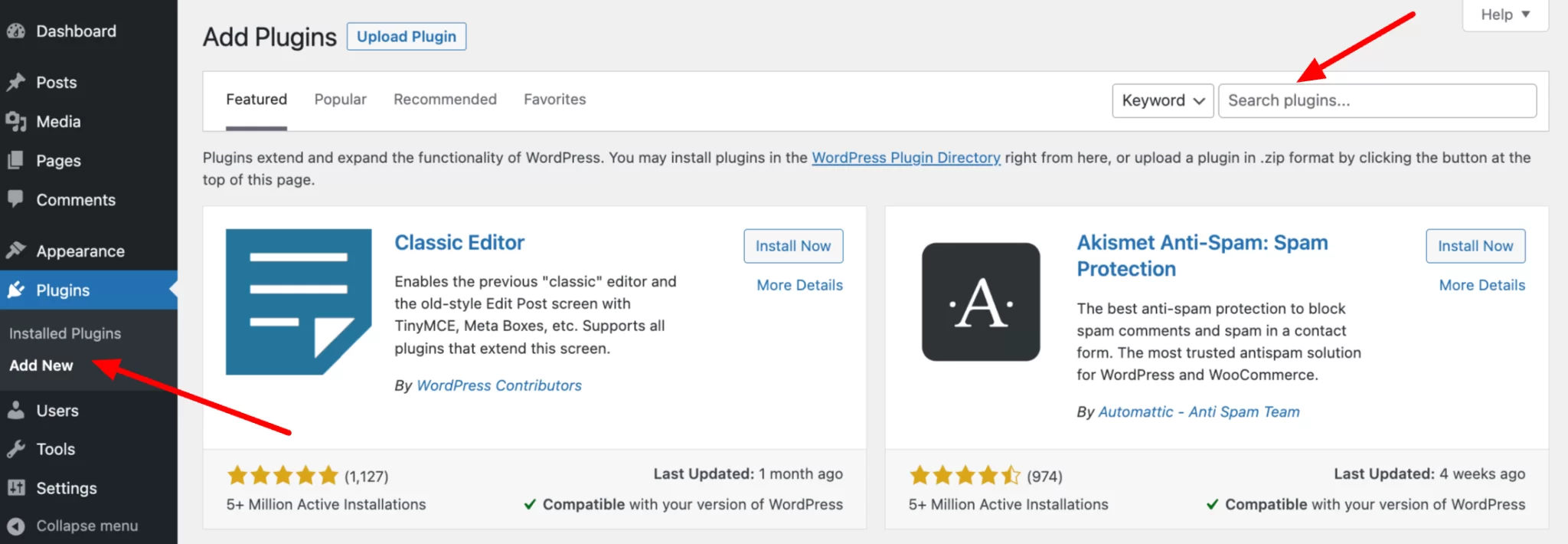
In the left sidebar, hover over Plugins and click Add New.
You’ll land on the main dashboard screen that looks something like this:

Step 3: Click “Upload Plugin”
At the top of the page (near the title “Add Plugins”), click the Upload Plugin button.
You’ll see a simple upload area appear.

Step 4: Choose Your Plugin .zip File
Click Choose File (or Browse), then find and select the .zip file you downloaded.
Do not extract/unzip the file first — WordPress needs it zipped!
After selecting the file, click Install Now.

WordPress will upload and unpack the plugin for you (usually takes 5–30 seconds).
Step 5: Activate the Plugin
Once installation finishes, you’ll see a success message.
Click Activate Plugin right away (or Activate from the Plugins → Installed Plugins list later).

Quick Troubleshooting Tips for Beginners
- “Are you sure you want to do this?” → This security check sometimes appears — just click OK/Confirm.
- Installation failed / Invalid plugin zip → Make sure the file is really a proper WordPress plugin .zip (not a theme or random archive).
- Plugin not appearing? → Go to Plugins → Installed Plugins and look there. Activate it manually if needed.
- White screen / site broken? → Deactivate the plugin via FTP (or rename the plugin folder in /wp-content/plugins/ to something like plugin-name-off).
- Most premium plugins show setup wizards right after activation — follow them!
